VE Scene Doctor · free 3ds Max script
VE Scene Doctor Find what slows down your 3ds Max scene.
A script that analyses large archviz scenes with many millions of polygons, plugins and scatters. It shows the elements that may cause problems. The main idea behind it is to make working in the viewport pleasant, and anyone who has worked in 3ds Max knows that with big scenes this is a problem.
Over time, as my needs grew, the script turned into a scene analysis tool: not only for optimising the viewport, but the whole scene – viewport and rendering.
Video tutorials soon
- Free
- Version 0.6.9 (in testing)
- 3ds Max 2025–2027
- Interface PL / EN
- Corona and Scatter optional
Where it came from
I make tools that solve my own problems. I share them because they might help someone else too.
Archviz is not only modelling and rendering. It is also imported models, thousands of objects, deep hierarchies and slowdowns whose cause is not always obvious.
More than once I spent longer looking for the cause of a problem than fixing it, in big scenes and small ones alike. So I started collecting diagnostic tools in one place: to check the state of a scene quickly, find suspicious elements and do what is needed without digging through panel after panel.
Next to it is VE Clean. The two split the work: Scene Doctor is the full check-up of a scene, VE Clean is for quick everyday jobs, on the scene or on a single model.
What it does: tab by tab
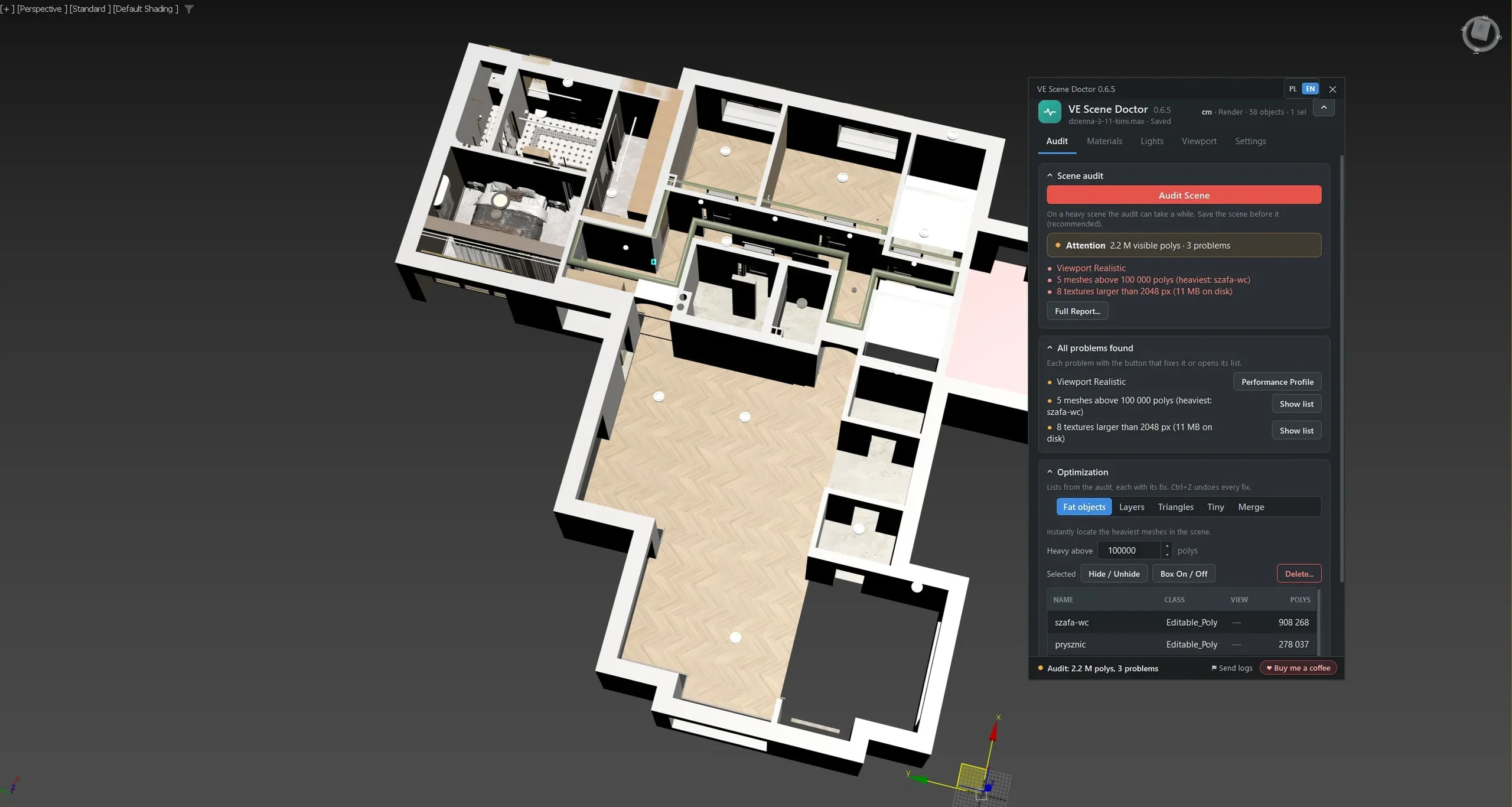
VE Scene Doctor 0.6.9
01 Audit
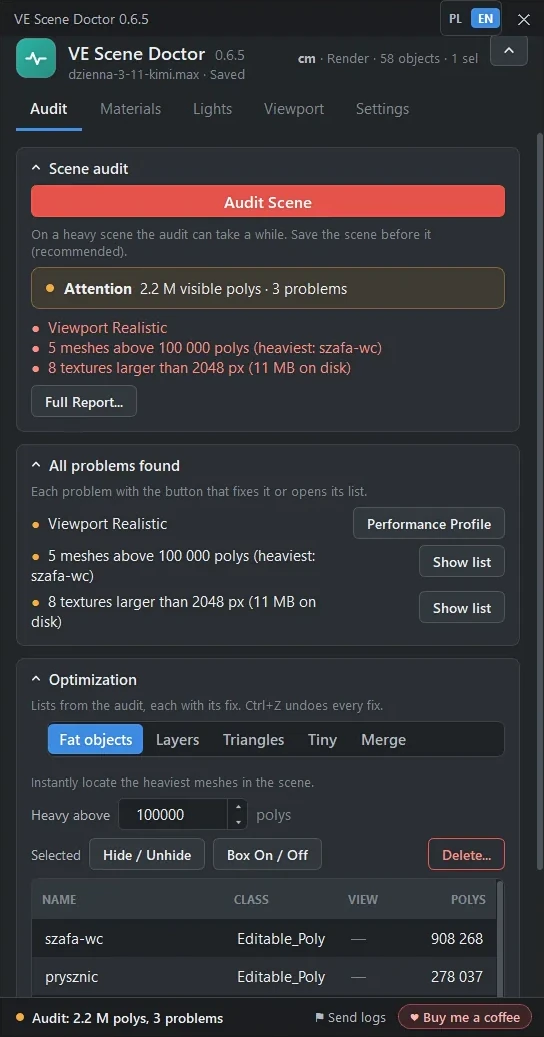
Every problem
on one list.
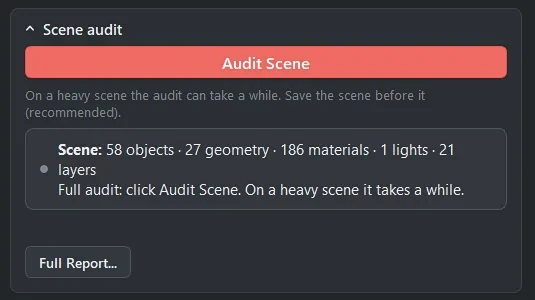
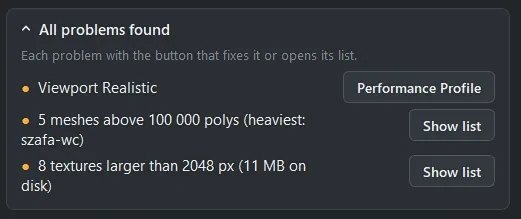
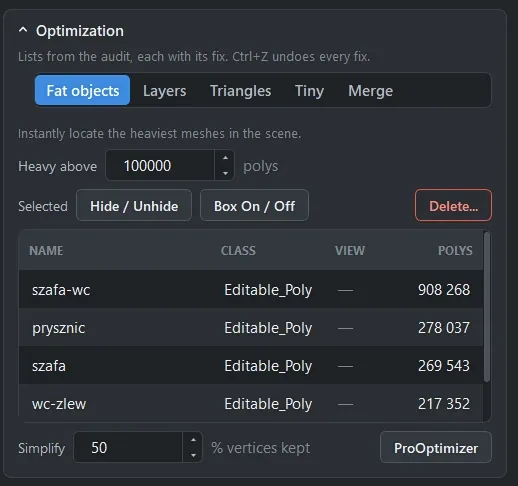
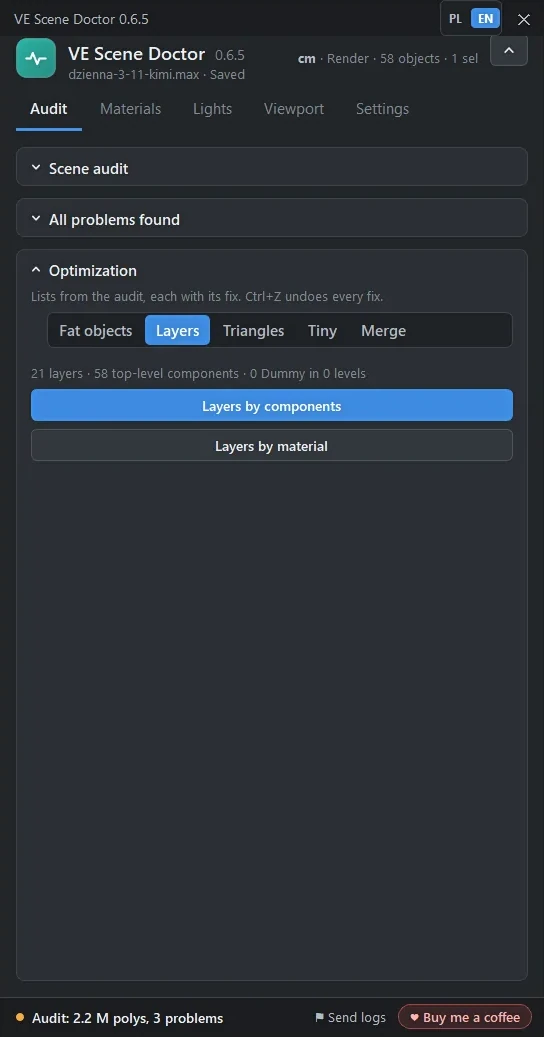
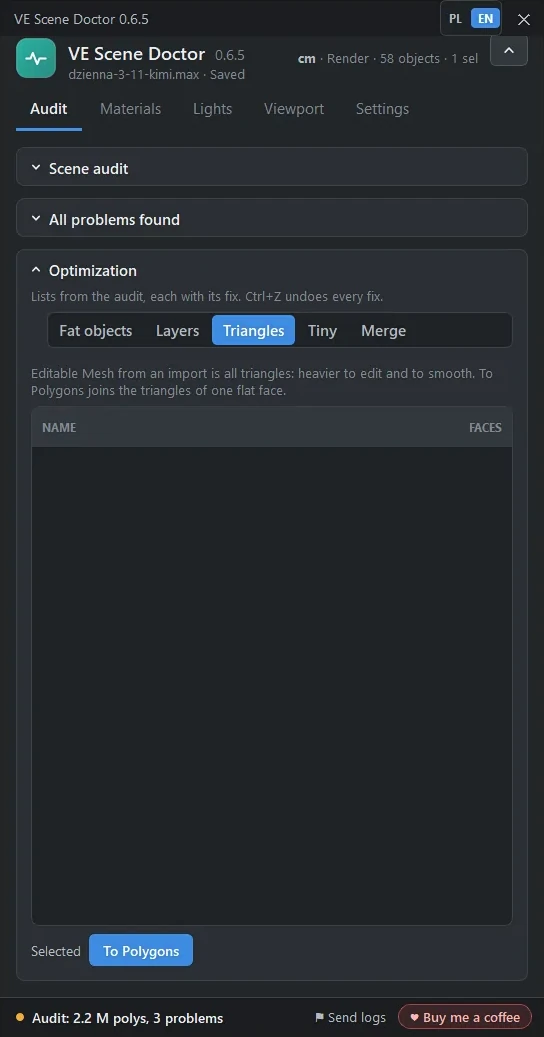
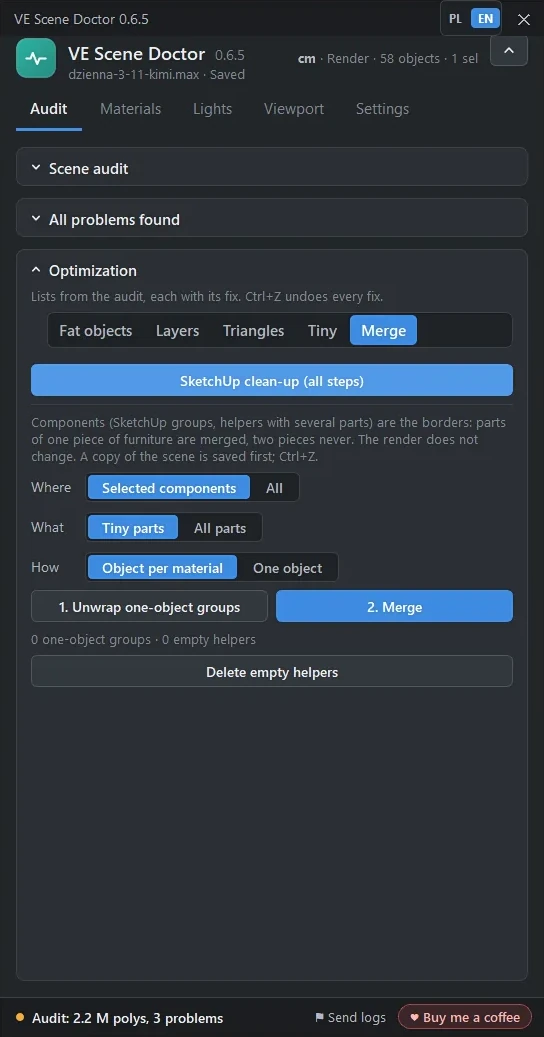
Opening the panel shows only the counts, so 3ds Max does not stall. Audit Scene gives a verdict, the worst problems in red and a full report. It usually takes seconds, longer on a very heavy scene. Every problem has a button that fixes it or opens its list. Below that, Optimization: Fat objects (Hide, Box, ProOptimizer, Delete), Layers by components or material, Triangles → To Polygons, Tiny parts and Merge, with the whole SketchUp clean-up in one click or step by step.
Full list of checks (10)
- copies of one mesh that are not instances
- heavy meshes and all-triangle meshes from imports
- thousands of tiny separate objects
- empty helpers and deep hierarchy, everything on one layer
- missing maps and paths that get lost when the project moves
- materials and lights that are not Corona ones
- no lights and no environment (black render)
- scene far from 0,0,0
- proxies, scatters and viewport style that choke the viewport
- 3ds Max Auto Backup off or too rare, with a “Turn on every 10 min” button
02 Materials
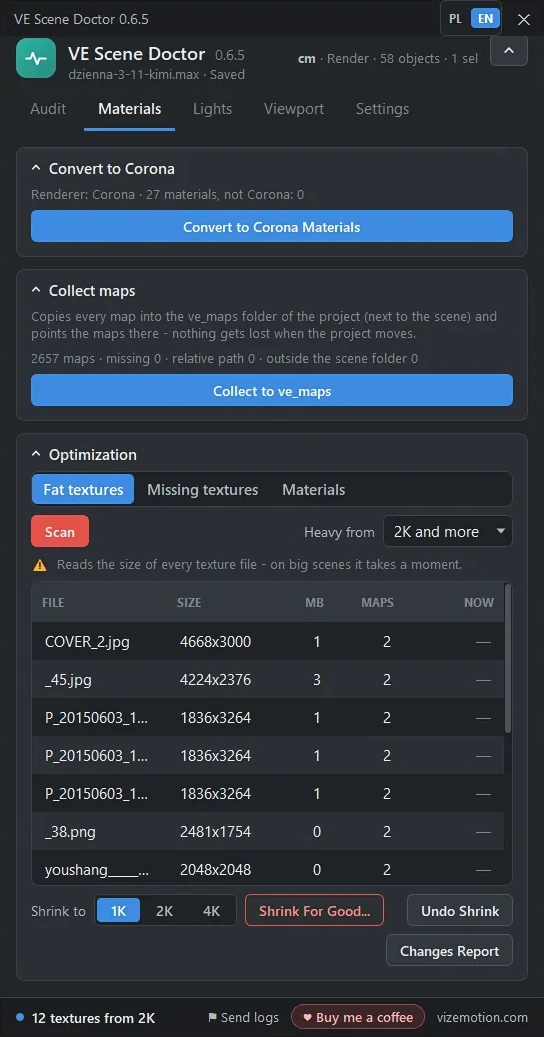
Materials and textures
in one panel.
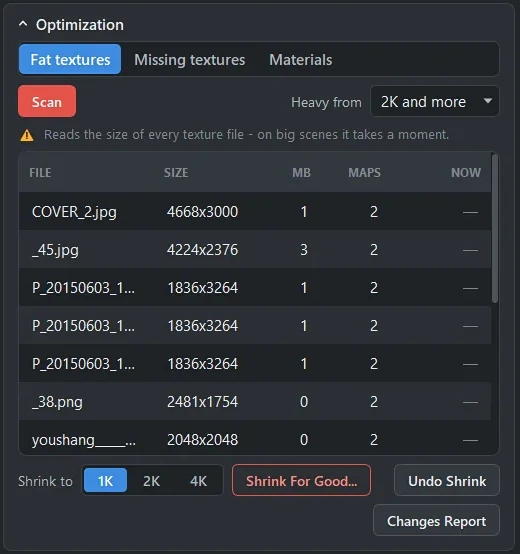
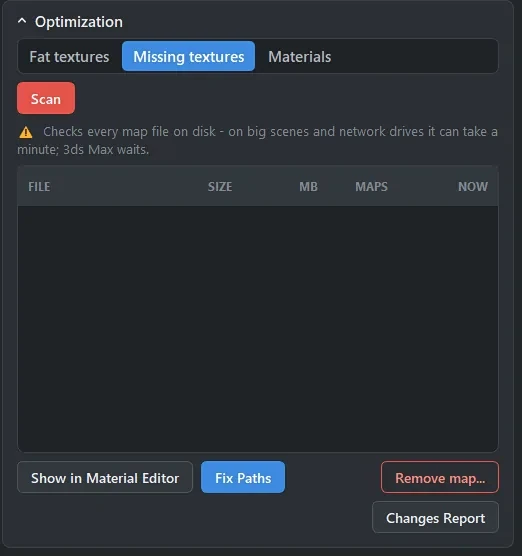
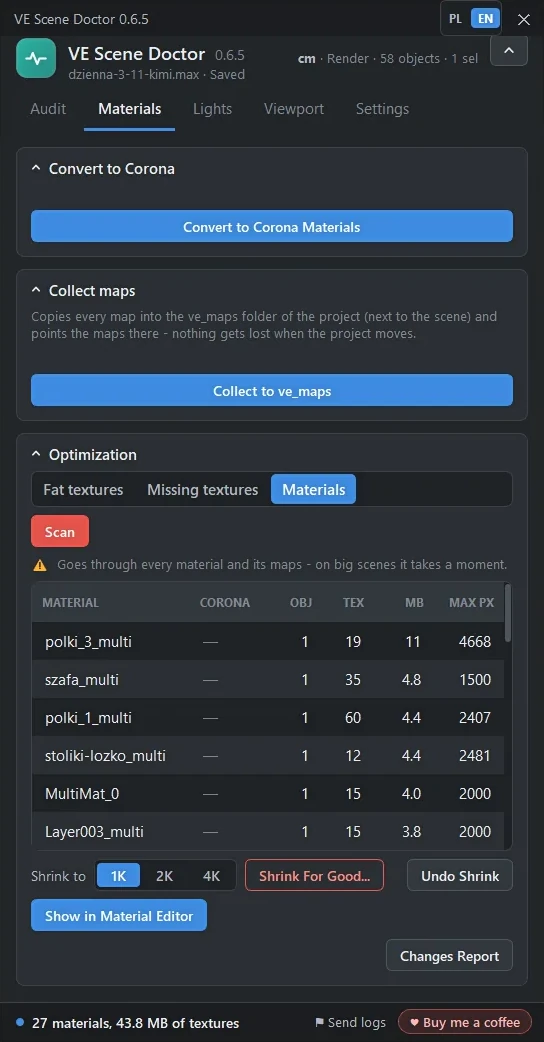
Missing maps, wrong paths and materials from different renderers usually arrive with an imported model. Collect the textures into the project’s ve_maps folder and convert materials to Corona. The Fat textures, Missing textures and Materials lists scan only when you press the red Scan button. Shrink textures for good (a smaller file in ve_maps\<size>, the original stays, with Undo Shrink and a Changes Report), also all textures of selected materials. Fix Paths after moving a project, or find a missing map in the Material Editor. A double click renames a texture file or a material.
03 Lights
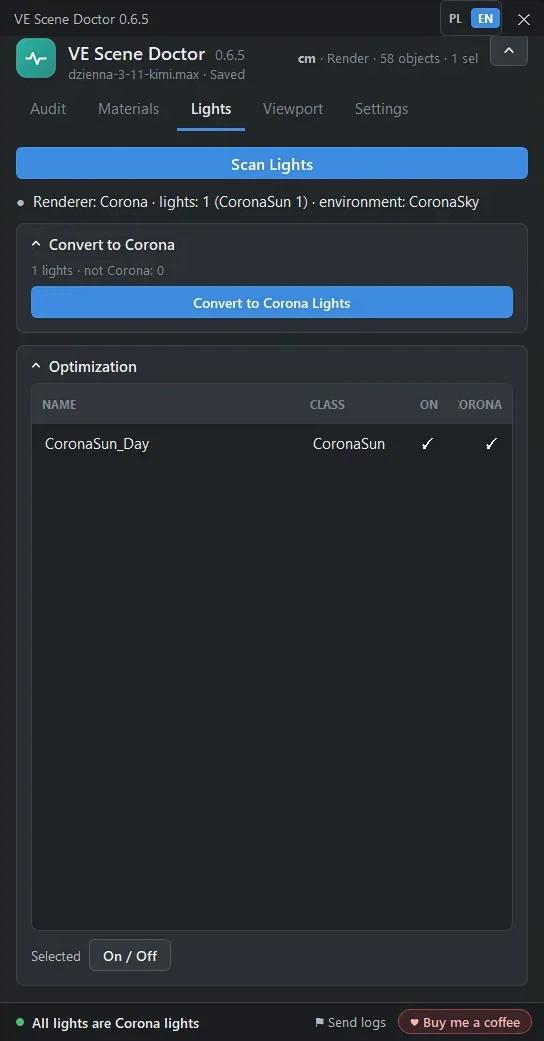
Lights without
searching the scene.
The script checks whether the scene has lights, an environment, Sun and Sky. The light list switches them on and off without digging in the Scene Explorer, and supported types convert to Corona lights.
04 Viewport
Everything for the viewport,
the render stays the same.
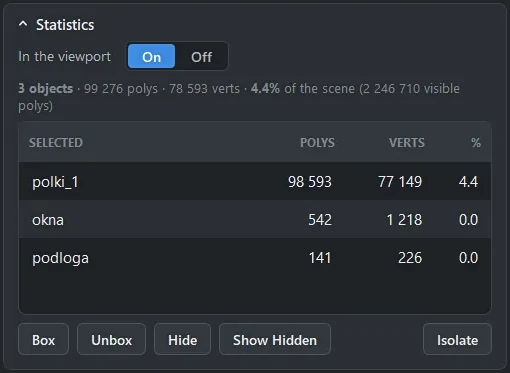
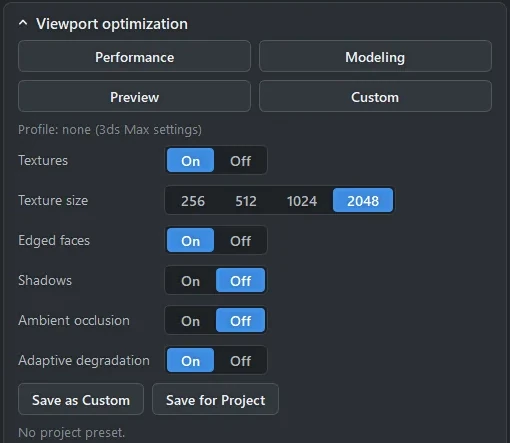
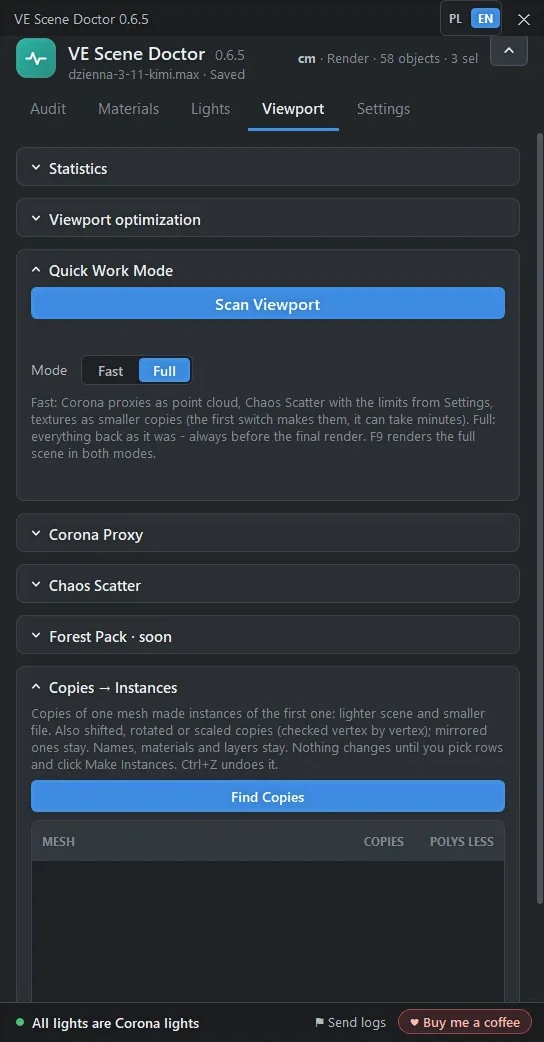
Statistics: Show Statistics on / off and a list of the selected geometry with polygons, vertices and % of the scene; Hide, Isolate, Box. Viewport optimization: Performance / Modeling / Preview / Custom profiles in one click, quick switches (textures and their size, edges, shadows, AO, adaptive degradation), your own profile (Save as Custom), a project preset loaded with every scene of the folder (Save for Project), hotkey macros. Quick Work Mode: Fast / Full for the whole scene and cards for Corona Proxy, Chaos Scatter (the same preview types as in its rollout) and Copies → Instances.
Quick Work Mode cards (6)
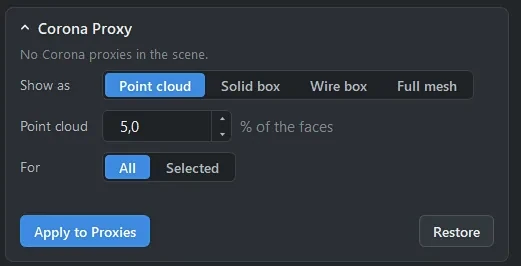
- Corona Proxy: Point cloud / Solid box / Wire box / Full mesh, point cloud density, all or selected, Restore
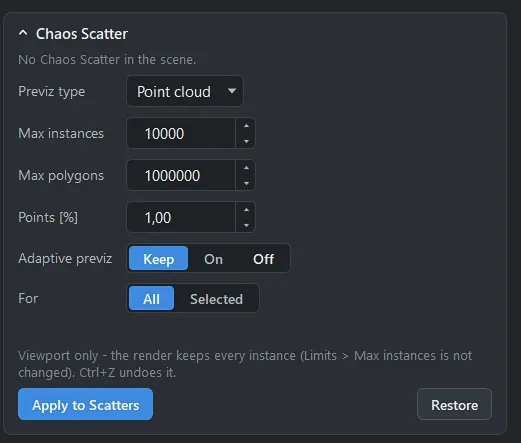
- Chaos Scatter: Previz type None / Dot / Box / Wire box / Full / Point cloud, Max instances, Max polygons, Points [%], Adaptive previz, all or selected, Restore
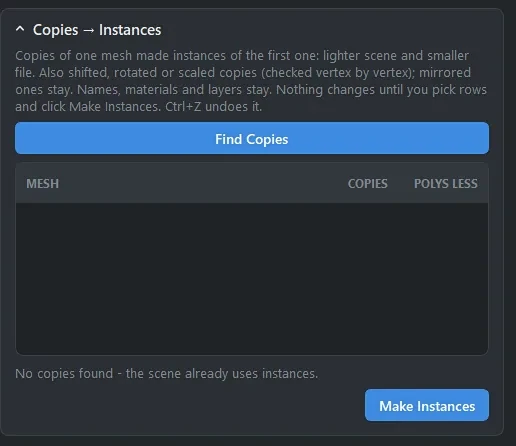
- Copies → Instances: a list with the polygons saved, also for shifted, rotated and scaled copies (checked vertex by vertex), converting only the rows you pick; names, materials and layers stay
- Background and layout: 2 or 4 views, gradient, color or environment behind the scene, HDRI file and resolution, rotate a spherical HDRI
- The cards show the objects’ current settings
- Forest Pack: coming soon
05 Settings
Set it once,
work faster.
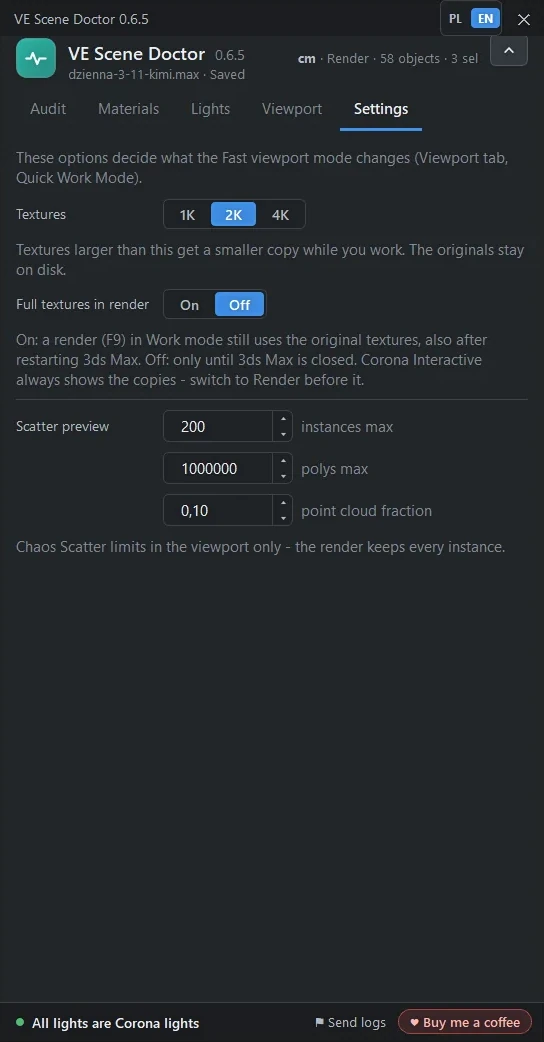
Decide what Fast mode in the Viewport tab changes: texture copy resolution, Scatter preview limits and whether the render always uses full textures, also after restarting 3ds Max. The PL | EN switch in the window header changes the interface language.

⇄
Selection in sync
Click in a list selects the object in the scene; double click zooms to it.
⟲
A copy before big changes
Bigger operations save a copy of the scene first. Deleting always asks.
●
You see it working
A red “Working…” bar shows that 3ds Max is computing, not frozen.
Download Scene Doctor 0.6.9
Free, no subscription. Enter your e-mail and the file downloads right away.
Installation
- Drag the .mzp file onto the 3ds Max window.
- Choose where the script should appear: Vizemotion Tools menu, toolbar, quad menu.
- Click Install. The script opens by itself.
- Using VE Manager? Find the script in the list and click Install (or Update).
Support the development
We build the Lab tools ourselves and give them away for free. Support is voluntary: the script works the same without it.
Help us build the apps ☕Honestly
What the script does, and what it does not.
The audit only looks
Audit Scene reads the scene and lists problems. It changes nothing and saves nothing. It usually takes seconds, longer on a very heavy scene, so saving first is recommended, as the note under the button says.
Changes only when you click
The scene changes only when you press a fix button. Bigger fixes save a copy of the scene first and deleting always asks. Ctrl+Z undoes most changes; after a big operation it may not undo everything, and then the copy is your way back.
Other 3ds Max versions
Tested on 2026. On 2025 and 2027 it should work, but we have not confirmed it yet; older versions are not tested. If the window does not open, nothing breaks in your scene: just let us know.
Viewport changes only the view
Profiles, Fast mode and the proxy and Scatter cards change what you see in the viewport; a normal render (F9) does not change. One exception: Corona Interactive always shows the smaller texture copies, so switch to Full before using it. The Restore buttons bring the previous settings back, also after saving the scene.
Tutorials
See it at work. soon
Short videos, one topic each. We are recording them now; they will also be on our YouTube channel.
Coming soon We are recording this one. Videos will also be on our YouTube channel.
First scene audit
Run the audit, read the report and use the fix buttons, step by step on a real scene.
News
New features come from problems I hit at work and from your reports. That is why your opinions and comments matter to me.
Available in 0.6.9
- Scene audit in seconds, with fix buttons
- Auto Backup warning
- SketchUp import clean-up
- Materials: collect, shrink for good, fix paths
- Conversion to Corona
- Viewport tab: statistics, profiles, proxy and Scatter cards
- Copies → Instances, also shifted, rotated and scaled
- Install from a .mzp file or through VE Manager
- Uninstall… in the Vizemotion Tools menu
Testing now
- Full tests of version 0.6.9
- Compatibility with 3ds Max 2025 and 2027
- Very large scenes (latest: 763 objects / 9.3 M polys)
- Different Corona and Scatter set-ups
Ideas
- Forest Pack card
- Preview of changes before applying them
- Memory use estimate
- Diagnostics for specific import types
- Richer reports
Script roadmap
0.7Planned
- Forest Pack card
- Preview of changes before applying them
- Memory use estimate
0.6.9Current
- After testing: many bugs fixed and changes reported by users added
- Send logs anonymizes more
0.6.7
- Viewport tab → Background and layout card
- 2 or 4 views
- Gradient, color or environment behind the scene
- Which HDRI or image is used and its resolution
- Rotate a spherical HDRI
0.6.6
- Fix: Materials → Scan listed 0 materials the first time the script loaded in a session
- Vizemotion Tools menu → Uninstall… removes selected tools completely
0.6.5
- Corona Physical materials count as Corona: the audit showed them as not Corona and the conversion processed them anyway
0.6.4
- The panel opens in every 3ds Max session (in some it did not open at all)
- The .mzp file installs the tool on its own, without VE Manager
0.6.3
- After a stress test (763 objects / 9.3 M polys): Copies → Instances also for shifted, rotated and scaled copies
- Every vertex checked before the swap, the object stays exactly in place
- Mirrored ones, ones with children and ones in groups with a scale 3ds Max cannot keep are skipped
- The list shows only copies that can be converted and how many were left out
- The statistics switch follows the 7 key
- The % of the scene counts visible objects only
- The “Heavy scene” headline only for a heavy scene
0.6.2
- New Viewport tab (replaces Work Mode): selection statistics, viewport profiles and switches, project preset, hotkey macros
- Corona Proxy and Chaos Scatter cards with every preview type, limits, all / selected scope and Restore
- Copies → Instances with a list and row picking
- Materials: Shrink For Good, Undo Shrink, Changes Report, path fixing, rename with a double click
- Faster audit: 60 s → 3 s on the test scene
- Stability: the panel no longer queries the scene during its own actions, mouse drags, undo, open, save and render
- Red “Working…” bar, Auto Backup warning
0.5.4
- Materials: tabs no longer scan on click
- Red Scan button
0.5.3
- Audit with fix buttons
- Optimization
- Materials and Lights tabs
- New look
0.3
- Qt panel
- Install through VE Manager
- Render guard
0.2
- Work and Render modes
0.1
- First scene report
- Heavy objects, proxies, scatter, textures
A problem with the script, or something worth adding? Write to me.
If the script shows errors or will not start, write to me and, if you can, send the logs: click Send logs in the script window. If the window does not open, the logs are in %LOCALAPPDATA%\VizualEmotion\logs.
A log is a plain text file with what the script did and the text of any errors. You can open it in Notepad and check it yourself. In a report, paths, user, computer and scene file names are removed, and geometry and textures are never sent. The script collects no data: the log stays on your computer until you send it.
Questions
Compatibility and the most common questions.
Tested
3ds Max 2026
Intended, in testing
3ds Max 2025, 2027
Optional plug-ins
Corona – conversions, proxy card
Chaos Scatter – Scatter card
Is VE Scene Doctor free?
Yes. No purchase and no subscription.
Why is my 3ds Max scene slow?
Common causes the audit checks for: copies of one mesh that are not instances, heavy meshes and textures, thousands of small separate objects, and proxies or scatters that choke the viewport. The report shows which of them apply to your scene.
How do I speed up the viewport in a heavy scene?
Use the Viewport tab. Fast mode switches to smaller texture copies and limits the Scatter preview, and Corona Proxy can show as a point cloud or a box. It changes the viewport only; the render stays the same.
Do I need Corona?
No. Most diagnostics and optimisation work without it. Converting materials and lights and the Corona Proxy card need Corona; the Scatter card needs Chaos Scatter.
Will it fix every problem by itself?
No. The audit points at problems and the tools do specific operations. Not every change can or should be automatic.
Can it handle a big scene?
Big scenes are why it exists. Since 0.6.2 the audit takes about 3 s instead of 60 s on our test scene, and 0.6.3 went through a stress test on 763 objects / 9.3 M polygons. The time still depends on the scene and the computer.
How is it different from VE Clean?
Scene Doctor examines the whole scene and lists what to fix, with a fix next to each problem. VE Clean is for quick, repeatable jobs: one click, one job. They work well together.
How do I update or remove it?
To update, drag the new .mzp file onto 3ds Max: it replaces the old version and your settings stay. With VE Manager, click Update. To remove it, use Vizemotion Tools menu → Uninstall…
Is the script finished?
No. The current version does specific things well, and I still see areas to test and improve.
Feedback
Something wrong? An idea? Write to us.
Every report goes straight to the Lab with the script name and version, so we know where to look. For a bug, add the 3ds Max version, renderer and what you clicked: it saves a lot of back-and-forth.