VE Pivot Placer · 3ds Max script
VE Pivot Placer Get your pivot in order in 3ds Max.
An object’s pivot is a really useful thing: it helps a lot and speeds up work, but only under certain conditions. Put simply, it all depends on whether you have it “there”, where it should be at that moment. Sure, you can do that in 3ds Max itself, but it can sometimes take a while. I always go for tools right “under the mouse” that solve the problem in one click.
Video tutorials soon
- Version 0.6.14
- 3ds Max 2022–2027
- Interface PL / EN
- No extra plugins
Where it came from
The pivot is rarely
where you need it.
Imported and library models often have their pivot in a random place: next to the object, below the floor or at the world origin. Before I can rotate a chair or drop a lamp on a table, I fix the pivot by hand, object after object.
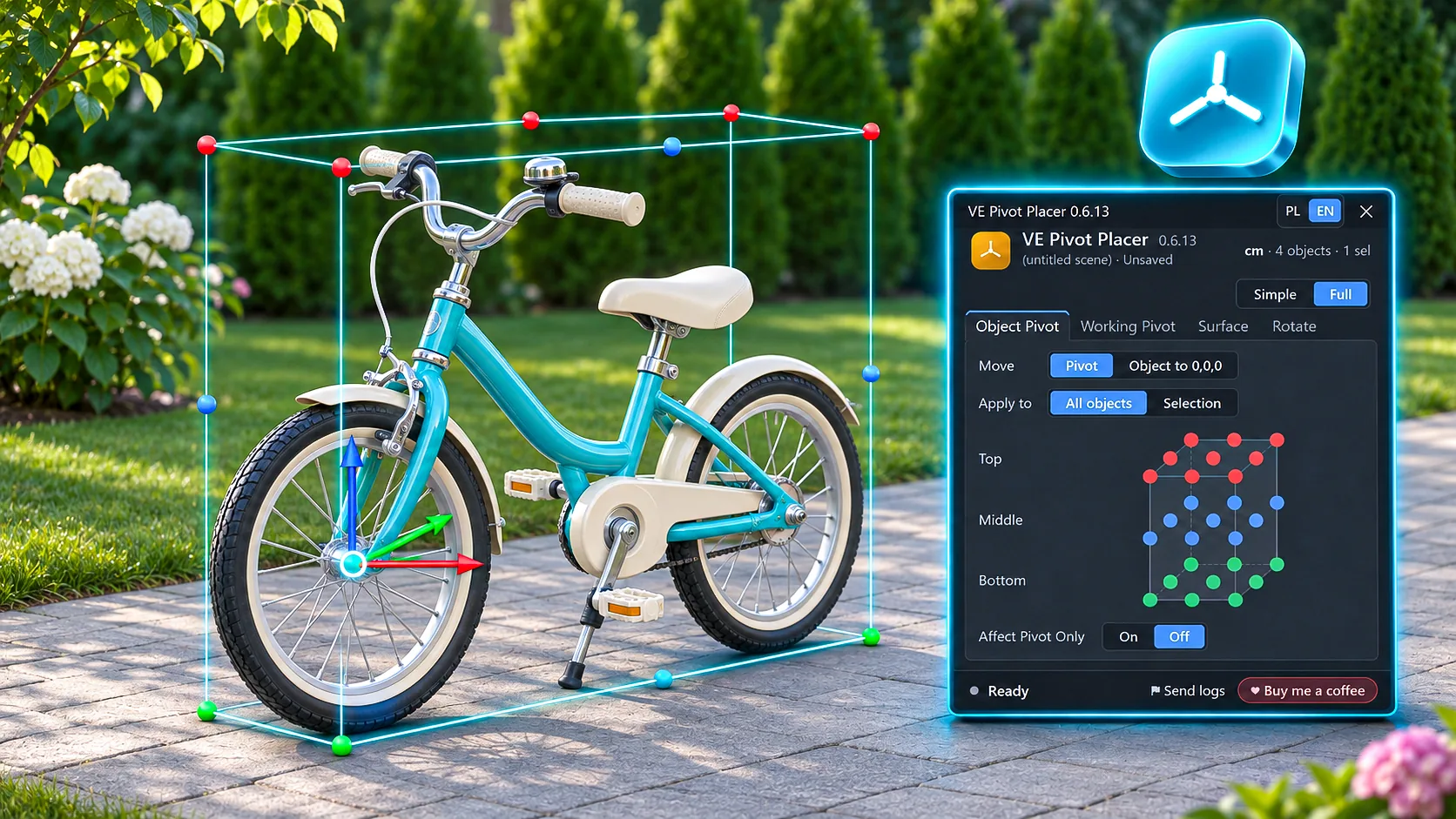
VE Pivot Placer puts the pivot on a chosen point of the object, turns it to the object’s own axes or to another object, and places objects on faces. The viewport shows the point before you click.
What it does: tab by tab
VE Pivot Placer 0.6.14
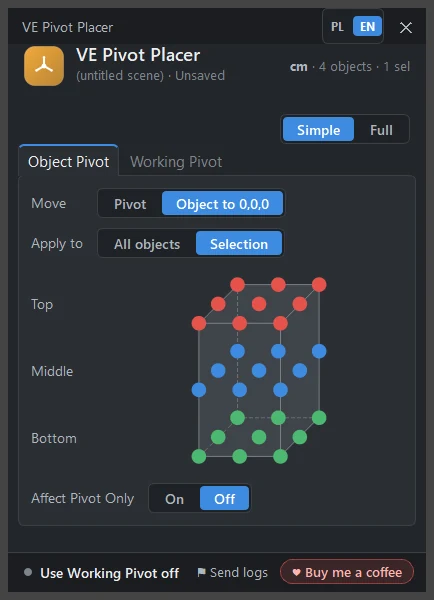
01 Object Pivot
Hover a point.
Click it.
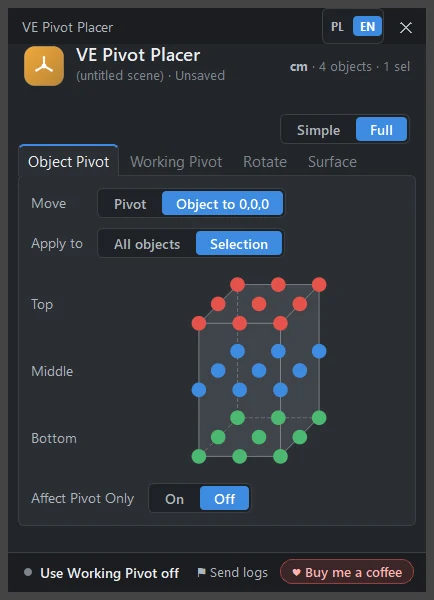
Corners, edge centers, face centers and the center, on three levels: bottom, middle, top. Hover a dot and the viewport shows the object’s box and the new pivot position with its name, e.g. “bottom front left”.
Move
- Pivot: the pivot goes to the clicked point, the object stays
- Object to 0,0,0: the clicked point lands on the world origin, handy for library models
Apply to
- All objects: every selected object gets the pivot at the same point of its own box
- Selection: one shared box for the whole selection
Also
- Affect Pivot Only at hand, to nudge the pivot yourself
- The box follows the geometry’s own axes: points hit the corners on rotated objects too
- Simple mode shows only Object Pivot and Working Pivot
02 Working Pivot
Working pivot.
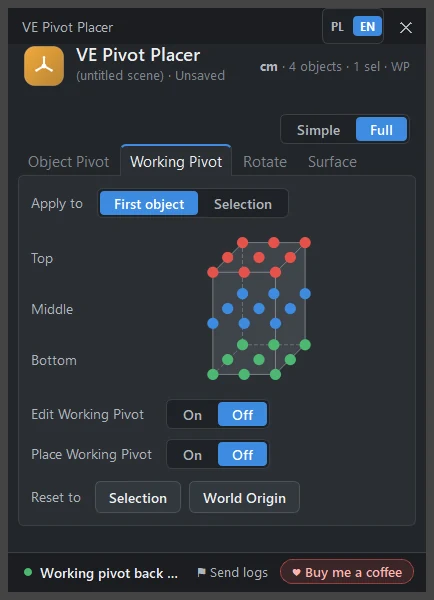
Move and rotate around any point while the objects keep their own pivots. The working pivot works only on its tab: leave it and the gizmo and toolbar settings go back to what they were.
Place it
- The same 27 box points
- Place Working Pivot: 3ds Max’s Place Pivot To: Surface, click or drag over a face
- Edit Working Pivot: move and rotate it by hand with the gizmo
- Reset to: the first selected object or the world origin
Safe
- Until you place it, the gizmo stays on the normal pivot
- Come back to the tab and it waits where you left it
03 Rotate
Pivot rotation.
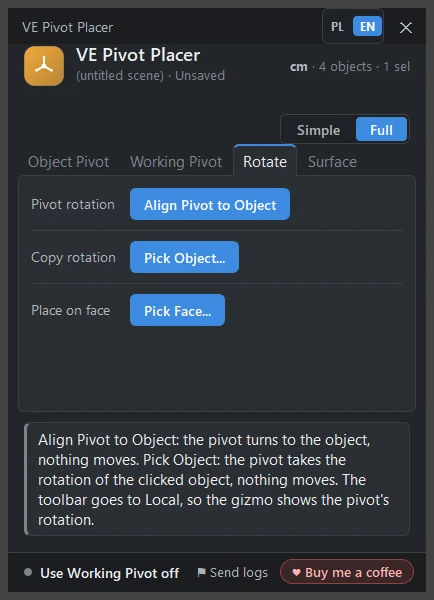
Three tools for the rotation of the pivot and the object. After a change the toolbar switches to Local, so the gizmo shows the new axes, and the status line shows the rotation in degrees.
Tools
- Pivot rotation: the pivot turns to the geometry’s axes, nothing moves. E.g. the object is rotated x: 10, y: 20, z: 45, but its pivot is still x: 0, y: 0, z: 0 – one button gives the pivot the same rotation as the object.
- Copy rotation…: the pivot takes the rotation of the chosen object; its position does not change.
- Place on face…: pick any face of any object, e.g. a sloped roof. Click, and your object stands on it. This feature will grow in the next releases, maybe into a separate tab, because it opens up copying, creating instances, maybe many of them across the geometry, and perhaps even “painting” – with or without keeping the pivot’s orientation.
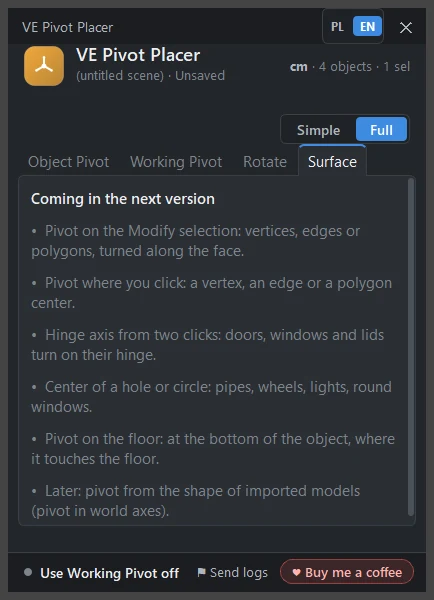
04 Surface
Pivot on a surface.
I’m working on this tab, but I’d also love to hear your ideas on what it could be used for.
Working on:
- Pivot from selected vertices, edges or polygons. It works like this: select the vertices and pick an object, and the working pivot follows that object. E.g. you want to move just one face of an object in line with another object, without changing the main pivot.
- “Hinge” pivot from two clicks: click two points on the geometry, e.g. the top and bottom hinge. The pivot sits on the first, and the Z axis points at the second. Then rotate around Z and the door opens like a real one.
- Center of a hole or circle
Select the rim of a hole or an edge loop around something round. The script fits a circle and puts the pivot at its center, with the axis perpendicular to the opening.
Example: a wheel (rotating around its axle), a pipe, a lamp, a round window, a knob. - Pivot on the floor – set the floor level or an object to act as the floor. One button: the pivot goes to the bottom of the object, and the object is placed on the “floor” automatically.
- Pivot from the shape of the geometry (later)
After an import from SketchUp, Revit or FBX, or after Reset XForm, the geometry is rotated but the pivot sits on the world axes. 3ds Max does not know how the object is really rotated. The script reads it from the shape: the largest flat face is the top, the longest edge is the front. Then it turns the pivot to match the geometry.
◎
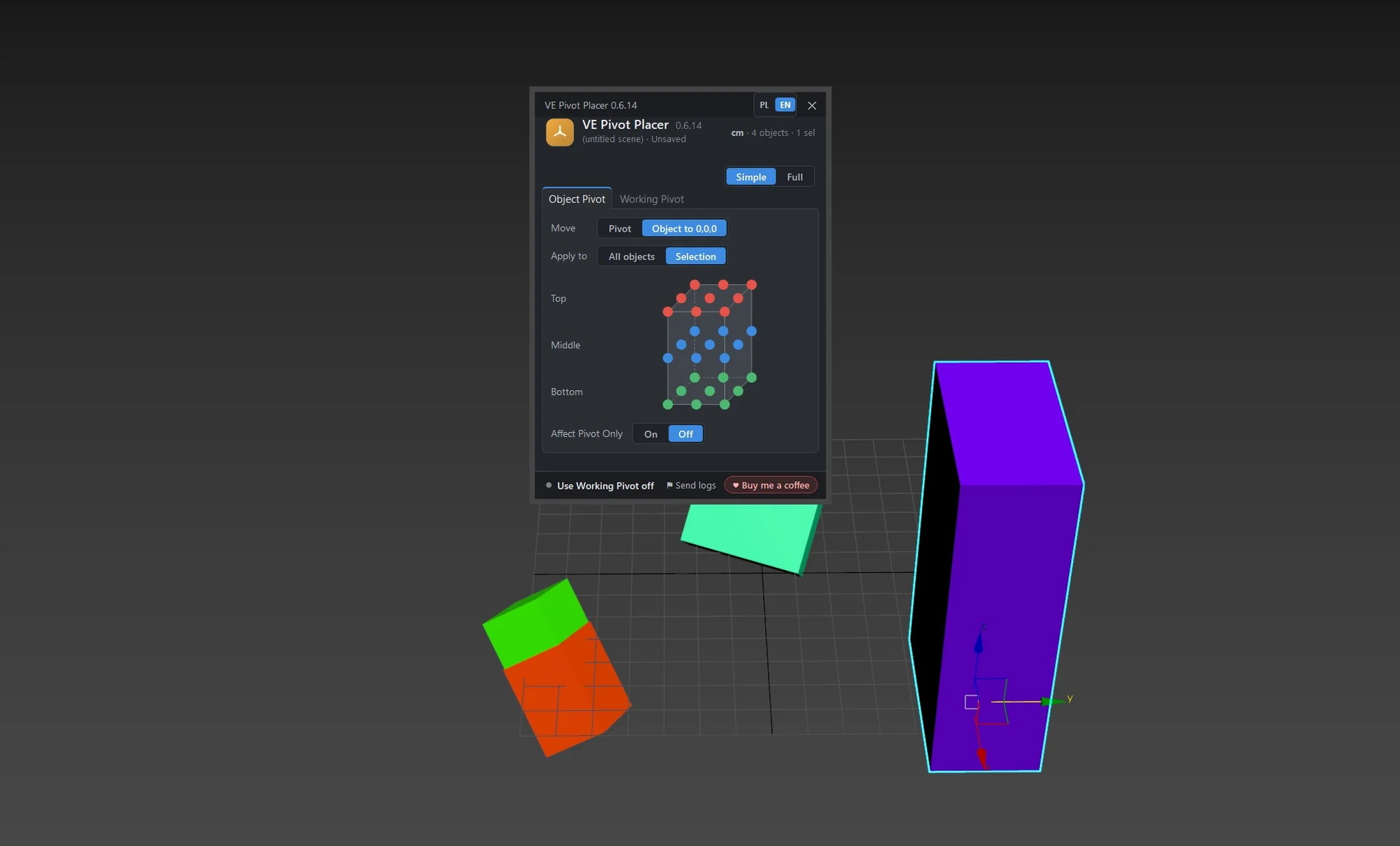
See it before you click
Hover a dot and the viewport shows the box and the new pivot with its name.
⧉
Many objects at once
Every selected object gets its pivot on its own box, or one shared box for the whole selection. Closed groups count as one object.
↶
One Ctrl+Z
Every change undoes in one step. Tested on scenes with thousands of objects; Esc stops a long run.
Download Pivot Placer 0.6.14
Enter your e-mail and the file downloads right away.
Installation
- Drag the .mzp file onto the 3ds Max window.
- Choose where the script should appear: Vizemotion Tools menu, toolbar, quad menu.
- Click Install. The script opens by itself.
- Using VE Manager? Find VE Pivot Placer in the list and click Install (or Update).
Support the development
We build the Lab tools ourselves and give them away for free. Support is voluntary: the script works the same without it.
Help us build the apps ☕Honestly
What the script does, and what it does not.
It changes the pivot
Object Pivot and Rotate change the pivot or move the object. Every change undoes with one Ctrl+Z. The working pivot changes nothing in the objects.
Imports in world axes
Models after Reset XForm or some imports no longer know their rotation, so the box sits in world axes. Reading the rotation from the shape is on the roadmap.
Other 3ds Max versions
Tested on 2026. On 2022–2027 it should work, but we have not confirmed it yet. If the window does not open, nothing breaks in your scene: just let us know.
Tutorials
See it at work. soon
Short videos, one topic each. We are recording them now; they will also be on our YouTube channel.
Coming soon We are recording this one. Videos will also be on our YouTube channel.
Pivot on a corner or the bottom center
Pick a point of the box, check it in the viewport and click. One object or many at once.
News
New features come from problems I hit at work and from your reports. That is why your opinions and comments matter to me.
Available in 0.6.14
- 27 box points with a viewport preview
- Object to 0,0,0 for library models
- Working pivot with Place Working Pivot
- Rotate: Align Pivot to Object, copy rotation, place on a face
- Simple and Full mode, PL / EN window
- Install from a .mzp file or through VE Manager
Testing now
- Compatibility with 3ds Max 2022–2027
- Saved points: named spots in the scene
Coming next
- Surface tab: the pivot on vertices, edges, polygons, a hinge or a hole
- Pivot from the shape for imports in world axes
Script roadmap
0.7Planned
- Surface tab: the pivot on the Modify selection (vertices, edges, polygons), turned along the face
- Pivot where you click: a vertex, an edge or a polygon center
- Hinge axis from two clicks: doors, windows and lids turn on their hinge right away
- Center of a hole or circle: pipes, wheels, lights, round windows
- Pivot on the floor: at the bottom of the object, where it touches the floor
…Planned
- Pivot from the shape: for imports and Reset XForm models with the pivot in world axes
- Saved points: named spots in the scene to send a pivot or an object to
- Roof window: a roof window in one click, square to the ridge, set into the slope
0.6.14Current
- The working pivot lives only on its own tab; unplaced, it does not jump, and leaving the tab restores the toolbar settings
- 3ds Max’s Place Working Pivot in the script window
- The dots hit the geometry’s corners after the pivot has been turned
- New Rotate tab: Align Pivot to Object, Copy rotation, Place on face
- The Surface tab moved to the end; its tools come in the next version
0.6.4
- Simple / Full mode
- Tab tips at the bottom of the window
- Safe on heavy scenes
0.6.1
- Viewport point preview
- Dots drawn as a solid
- One-file .mzp install
0.1–0.6
- 27 box points
- Working pivot
- The new window shared by Vizemotion scripts
A problem with the script, or something worth adding? Write to me.
If the script shows errors or will not start, write to me and, if you can, send the logs: click Send logs in the script window. If the window does not open, the logs are in %LOCALAPPDATA%\VizualEmotion\logs.
A log is a plain text file with what the script did and the text of any errors. You can open it in Notepad and check it yourself. In a report, paths, user, computer and scene file names are removed, and geometry and textures are never sent. The script collects no data: the log stays on your computer until you send it.
Questions
The script is tested on 3ds Max 2026. I expect it to work from 2022.
Tested
3ds Max 2026
Intended, not tested yet
3ds Max 2022–2027
Plugins
None needed
How do I move the pivot to the bottom center in 3ds Max?
Select the object, open Object Pivot and click the green dot in the middle of the bottom level. The viewport shows the point before you click.
Can I set the pivot on many objects at once?
Yes. Apply to: All objects gives every selected object its pivot at the same point of its own box. Selection uses one shared box for all of them.
What is the working pivot for?
To move or rotate around a point without changing the objects’ pivots, e.g. to turn a door around its hinge. It works only on its tab: leave the tab and everything goes back to normal.
Can I undo a change?
Yes. Every change undoes with one Ctrl+Z.
How do I update or remove it?
To update, drag the new .mzp file onto 3ds Max: it replaces the old version. With VE Manager, click Update. When a newer version is out, a note shows in the window header. To remove it, use Vizemotion Tools menu → Uninstall…
Feedback
Something wrong? An idea? Write to us.
Every report goes straight to the Lab with the script name and version, so we know where to look. For a bug, add the 3ds Max version, renderer and what you clicked: it saves a lot of back-and-forth.