VE Clean · 3ds Max script
VE Clean A handy toolkit for cleaning up 3ds Max scenes.
Working in 3ds Max I keep running into the same small jobs. Something needs cleaning, fixing, tidying or checking. Nothing big, but after a few dozen of these you start looking for a simpler way.
Video tutorials soon
- Version 2.1
- 3ds Max 2022–2027
- Interface PL / EN
- Corona optional
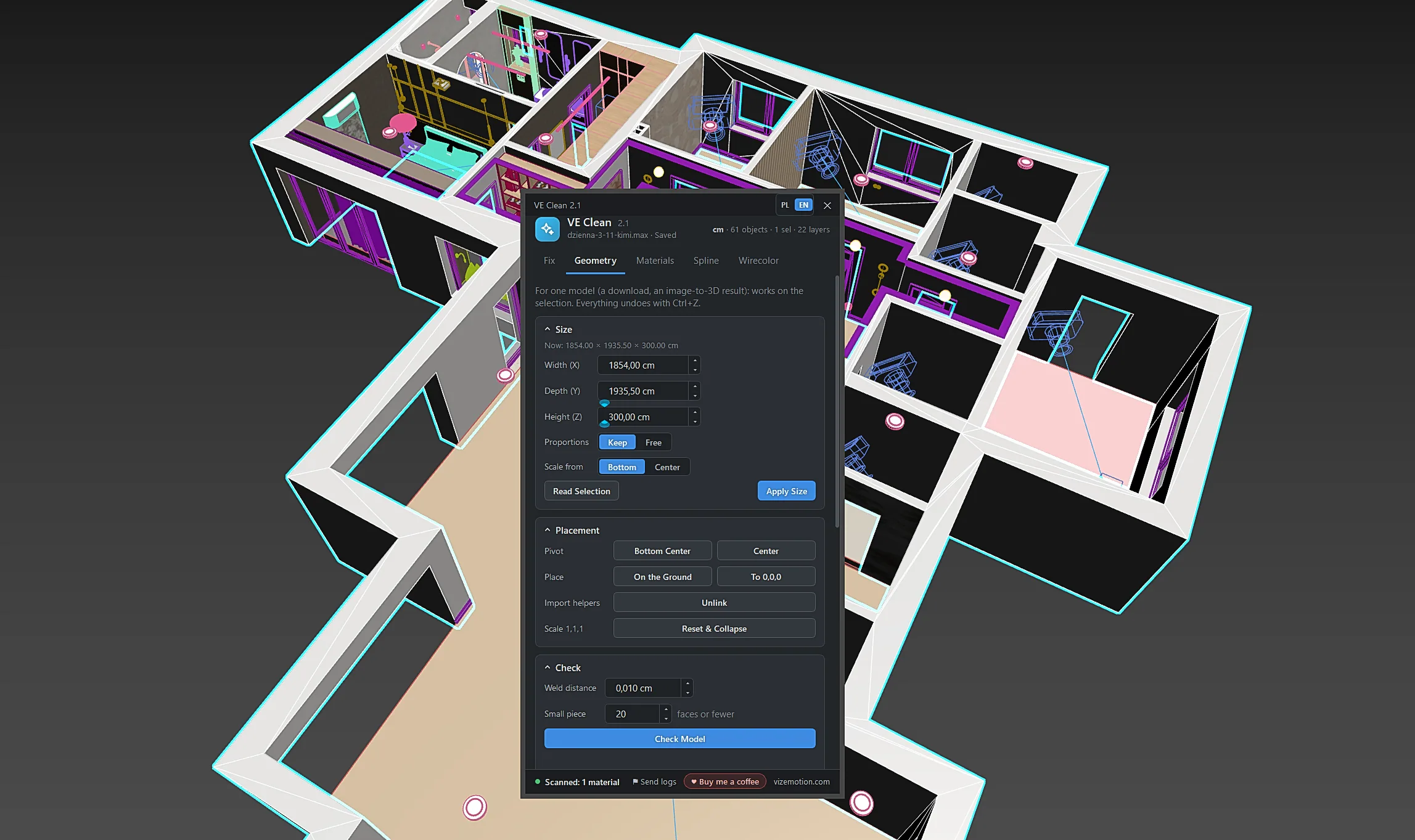
Where it came from
Tools for everyday work
I gathered the tools I use in my own daily work. Some get rid of unneeded data in the scene, but most are for working with selected objects, materials and their settings.
VE Scene Doctor helps you find problems. VE Clean lets you do specific clean-up jobs without digging through menu after menu.
I would love to hear what you use in your own work too.
What it does: tab by tab
VE Clean 2.1
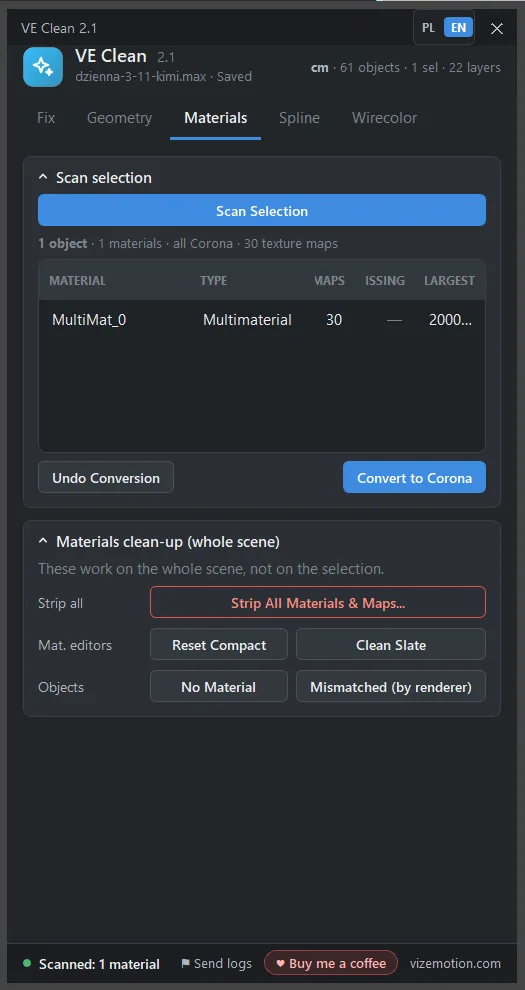
01 Fix
Clean up the scene
Remove unneeded data, clear empty layers and what is left of animation. You pick the operation instead of running every step in turn.
Clean-up
- Empty layers
- Junk objects: plugins that are not installed, Editable Poly / Mesh with 0 polygons, empty groups
- Animation keys
- Free memory
Objects
- Uneven or negative scale → Reset XForm
- Disabled modifiers
- Groups to ungroup
SketchUp
- Select any part, like a door handle, and find its component
- Select all copies of the component
- Merge each one into a single object, separately or as instances
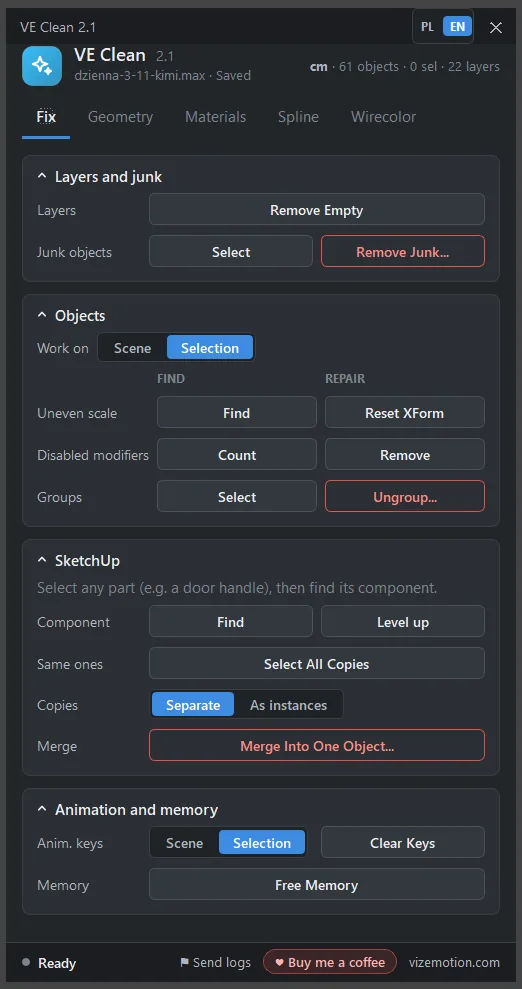
02 Geometry
Fit an object to exact dimensions
A downloaded or generated model usually has the wrong size, the pivot somewhere else and too many polygons. Here you sort that out on one model.
Size
- Width, depth and height in scene units
- Proportions kept or free
- Scaled from the bottom or the center
Placement
- Pivot to the bottom center or the center
- On the ground or to 0,0,0
- Unlink from GLB / FBX / OBJ import helpers
- Reset XForm and collapse to scale 1,1,1
Mesh
- Reduce: fewer triangles, same shape, UVs and materials kept
- Remesh: a new quad mesh for modelling
- Result as a modifier or collapsed, with a hidden copy of the original if you want one
Check Model (7)
- open edges (holes): Select
- loose vertices: Remove
- zero-area faces: Remove
- vertices closer than the weld distance: Weld
- floating pieces, generator crumbs: Delete
- non-manifold spots: counted only
- Unify Normals and Auto Smooth 30°
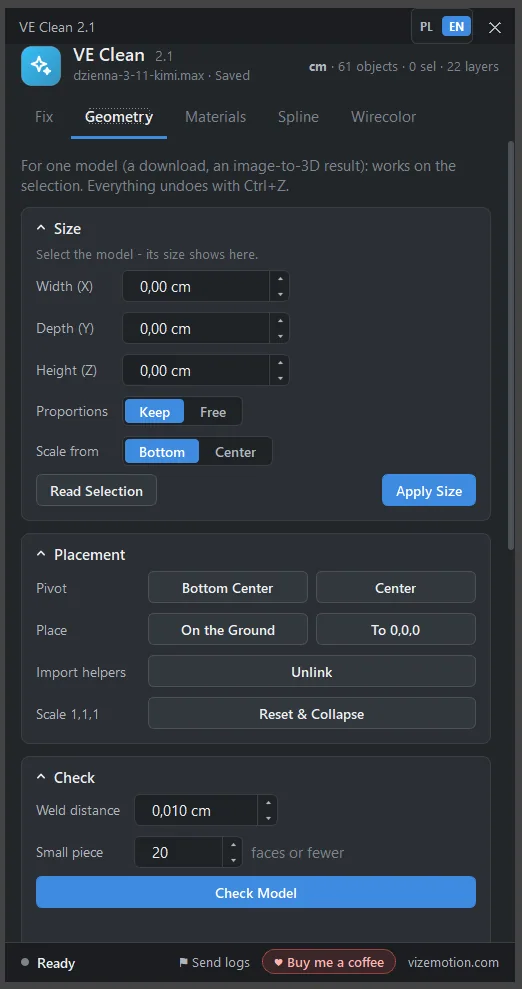
03 Materials
Sort out your materials
Select objects and you see at once what materials they use. Click a row and the script selects every object with that material.
Scan Selection
- Material type, Corona or not
- Texture maps and missing files
- The largest texture
Corona
- Convert to Corona runs Corona’s own converter on the other materials
- Undo Conversion brings the old ones back
Whole scene
- Strip all materials and maps
- Reset the Compact Material Editor, a clean Slate view
- Select objects with no material or with materials that do not fit the renderer
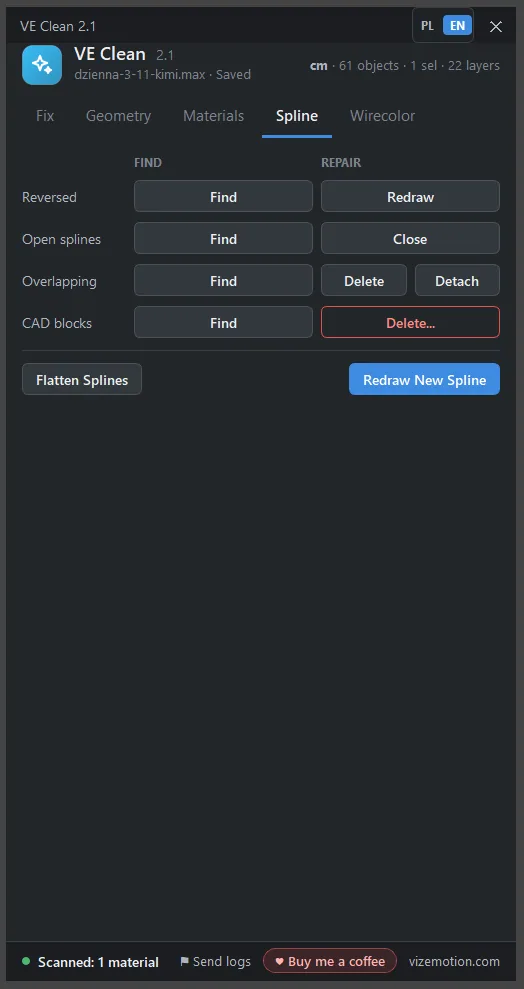
04 Spline
Splines
You work on the selected splines, or on all of them when nothing is selected. Repairs keep the name, layer, material and modifiers.
Find and repair
- Reversed and open splines
- Overlapping splines, duplicates from CAD
- CAD blocks
Rebuild
- Flatten splines
- Redraw a spline from scratch when Extrude or Sweep gives odd results
05 Wirecolor
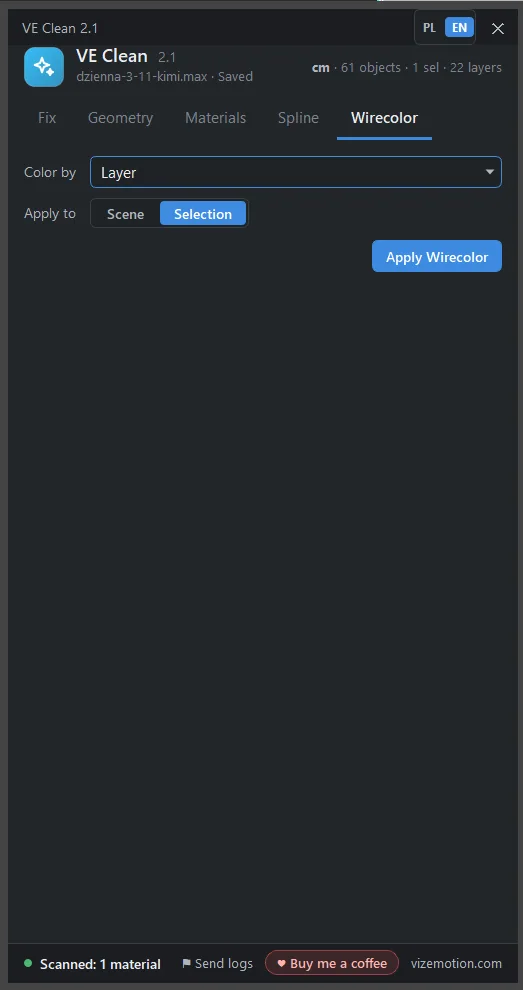
Wirecolor
Colors help you spot instances and check an import. It works on the scene or on the selection.
Color by
- Material
- Instance group
- Layer
- Type: geometry, light, camera, shape, helper
- At random
▤
Check what is in the scene
Open the scene reports in VE Scene Doctor and find missing textures or objects to check. Instead of going through items by hand, start from a list of results.
①
Pick a tool. See the result.
VE Clean does not change how you work. Open the panel in 3ds Max, pick a function and run it when you need it. You do not have to run a whole set of operations to use one.
▭
Scene or selection
Choose what to work on; the scene units are always visible in the window header.
Download Clean 2.1
Enter your e-mail and the file downloads right away.
Installation
- Drag the .mzp file onto the 3ds Max window.
- Choose where the script should appear: Vizemotion Tools menu, toolbar, quad menu.
- Click Install. The script opens by itself.
- Using VE Manager? Find the script in the list and click Install (or Update).
Support the development
We build the Lab tools ourselves and give them away for free. Support is voluntary: the script works the same without it.
Help us build the apps ☕Honestly
What the script does, and what it does not.
Find only selects
Find, Count, Check Model and Scan Selection change nothing. The scene changes only when you press a repair button.
Two things Ctrl+Z will not undo
Strip All Materials & Maps cannot be undone (files on disk are not touched), so it lists what it will remove and asks. Corona’s converter cannot be undone with Ctrl+Z: use Undo Conversion, which works until you close 3ds Max.
Remesh has no UVs
Remesh builds a new mesh of quads for modelling, without UVs, so textures fall apart; it needs 3ds Max 2023+ and is slow on heavy models, so it always asks first. For a textured model use Reduce.
Other 3ds Max versions
Tested on 2026 and 2027. On 2022–2025 it should work, but we have not confirmed it yet. If the window does not open, nothing breaks in your scene: just let us know.
Tutorials
See it at work. soon
Short videos, one topic each. We are recording them now; they will also be on our YouTube channel.
Coming soon We are recording this one. Videos will also be on our YouTube channel.
A generated model, ready for the scene
Size, pivot, check and Reduce on a model from an image-to-3D generator.
News
New features come from problems I hit at work and from your reports. That is why your opinions and comments matter to me.
Available in 2.1
- Fix: layers, junk objects, scale, modifiers, groups
- SketchUp components: find, copies, merge
- Geometry for one model: size, placement, mesh check, Reduce / Remesh
- Materials: scan of the selection, Corona conversion with Undo
- Spline repairs and wirecolor
- Install from a .mzp file or through VE Manager
- Uninstall… in the Vizemotion Tools menu
Testing now
- Further tests of version 2.1
- Models from different image-to-3D generators
- Compatibility with 3ds Max 2022–2025
Ideas
- A more compact, expandable toolbar
- More quick jobs from everyday work
Script roadmap
2.2Planned
- A more compact, expandable toolbar
- Check Model: repair for non-manifold spots (today only a counter)
- Confirmed compatibility with 3ds Max 2022–2025
- More quick jobs from your reports
2.1Current
- Materials tab: scan of the selection (type, Corona or not, maps, missing files, largest texture)
- Convert to Corona with Undo Conversion
- Corona Physical counts as Corona
- Whole-scene clean-up in its own card
2.0.1
- The panel opens in every 3ds Max session
- The .mzp file installs the tool on its own, without VE Manager
2.0
- New tabs: Fix, Geometry, Materials
- Geometry for one model: size in scene units, pivot and placement, unlink from import helpers, Reset XForm
- Mesh check with repairs
- Reduce (ProOptimizer) or Remesh (Retopology)
- The Select tab is gone: its buttons are in Materials
1.80
- SketchUp merge fixed (a MAXScript memory error)
1.79
- SketchUp components: find, level up, all copies
- Merge into one object or instances
1.78
- Clean tab in folding sections
- Uneven or negative scale → Reset XForm
- Disabled modifiers → remove
- Groups → ungroup
1.77
- New look shared by the Vizemotion tools
- Window in Polish
- Spline as Find / Repair rows
- Reports moved to VE Scene Doctor
- Send logs
1.76
- Collapse the window
- Larger text
1.75
- One shared log for all VE tools
1.74
- Spline tab: find and repair splines
1.73
- New window
- Junk objects
- Free memory
1.72
- Rewrite of the old material clean-up script
A problem with the script, or something worth adding? Write to me.
If the script shows errors or will not start, write to me and, if you can, send the logs: click Send logs in the script window. If the window does not open, the logs are in %LOCALAPPDATA%\VizualEmotion\logs.
A log is a plain text file with what the script did and the text of any errors. You can open it in Notepad and check it yourself. In a report, paths, user, computer and scene file names are removed, and geometry and textures are never sent. The script collects no data: the log stays on your computer until you send it.
Questions
The script is tested on 3ds Max 2026 and 2027. I expect it to work from 2022.
Tested
3ds Max 2026, 2027
Intended, in testing
3ds Max 2022–2025
Optional
Corona – material conversion
Remesh – 3ds Max 2023+
How do I clean up a 3ds Max scene after an import?
On the Fix tab you pick what the scene needs: empty layers, junk objects from missing plug-ins, leftover animation, groups, uneven scale. Find only selects; the scene changes when you click the repair button.
How do I reduce polygons in a downloaded model?
On the Geometry tab, Reduce gives you fewer triangles and the same shape; UVs and materials stay. You can keep the result as a modifier or collapse it.
How is it different from VE Scene Doctor?
Scene Doctor examines the whole scene and lists what to fix, with a fix next to each problem. VE Clean is for quick, repeatable jobs: one click, one job, often on a single model. They work well together.
How do I update or remove it?
To update, drag the new .mzp file onto 3ds Max: it replaces the old version. With VE Manager, click Update. When a newer version is out, a blue Update note shows in the window header. To remove it, use Vizemotion Tools menu → Uninstall…
Is the script finished?
No. The script is still in testing. A stable version only means it has been tested by me and my friends.
Feedback
Something wrong? An idea? Write to us.
Every report goes straight to the Lab with the script name and version, so we know where to look. For a bug, add the 3ds Max version, renderer and what you clicked: it saves a lot of back-and-forth.